IP Pinger user guide
IP Pinger is a Windows program that watches devices and servers on your network with ping. It sends an ICMP echo request to each target at its own interval, shows the response time and packet loss live, and keeps a summary of every minute. You can use it on its own with a free license that arrives by email, or link it to your EndpointGuard account so that targets and history also show up in the panel.
This guide covers version 2.2.2. Menu names are written as they appear in the English interface.
1. Installing and uninstalling
Download
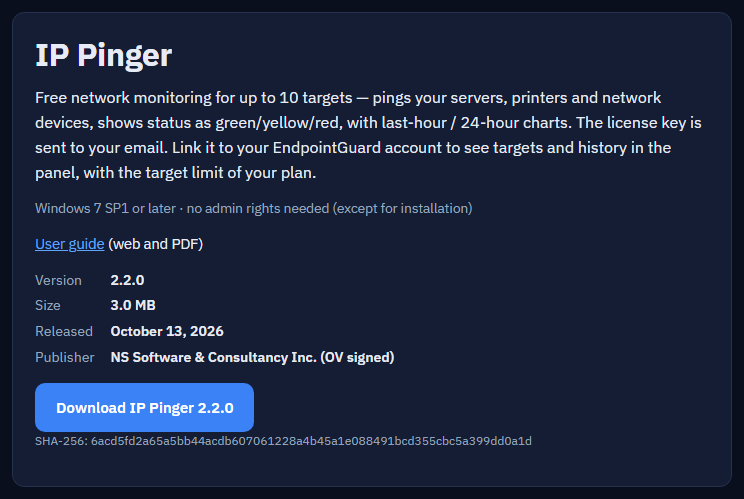
Get the installer from the Downloads page. It is an MSI package signed by "NS Yazılım ve Danışmanlık A.Ş.". To make sure the file arrived intact, compare the SHA-256 value on the page with the output of this PowerShell command:
Get-FileHash .\EndpointGuard-IPPinger-2.2.2.msi -Algorithm SHA256You can also check the signature under Properties › Digital Signatures.
Installation
Double-click the MSI. It installs for all users of the computer, so Windows asks for administrator approval once. The program goes to:
C:\Program Files (x86)\EndpointGuard\IP Pinger\An "EndpointGuard IP Pinger" shortcut appears in the Start menu. The installer asks no questions: after the welcome, confirmation and progress screens it reaches the last screen, where the "Launch EndpointGuard IP Pinger" check box is ticked; press Finish and the program opens. Even though setup runs with administrator approval, the program starts with the rights of the signed-in user, not as administrator. A silent install (/qn) has no last screen, so the program does not start by itself.
Running the program does not need administrator rights. Windows' own ICMP interface sends the pings; IP Pinger opens no raw sockets, installs no driver and does not run as a service. A standard user account is fine.
To deploy it to several computers, install the MSI silently:
msiexec /i EndpointGuard-IPPinger-2.2.2.msi /qn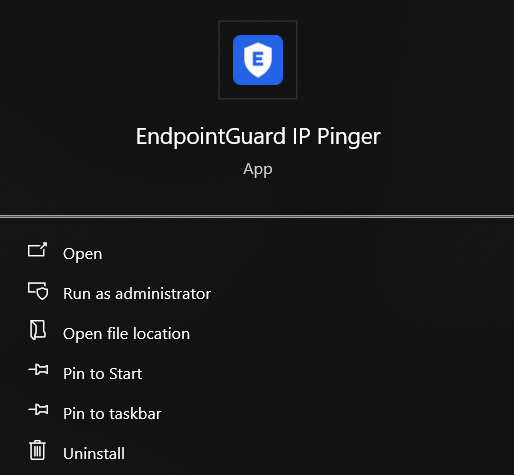
Windows 7
IP Pinger runs on Windows 7 SP1 and later; on Windows 7 without SP1 the installer will not start. Pinging needs nothing extra on Windows 7. Requesting and verifying a license and linking to the cloud need TLS 1.2, though. On Windows 7 that means update KB3140245 plus the "Easy Fix" setting Microsoft published with it. Without them the program opens but cannot reach the server, and the status bar shows a connection error.
Upgrading and uninstalling
You can install a new version over the old one. Settings, targets and history are kept. To update from inside the program, see section 9.
To uninstall, pick "EndpointGuard IP Pinger" in Windows Settings › Apps. Uninstalling does not touch the data in your user folder (section 11). If "Start with Windows" is on, that entry is removed only for the user who runs the uninstall. Other users on the same computer who added the program to their own startup keep the entry, and Windows will try to start a program that is no longer there. They can turn the entry off in Task Manager › Startup apps.
2. Free license
Unless you link it to the cloud, IP Pinger needs a free license key. Without one the status bar says "License required — Account › License" and monitoring does not start.
Getting a key
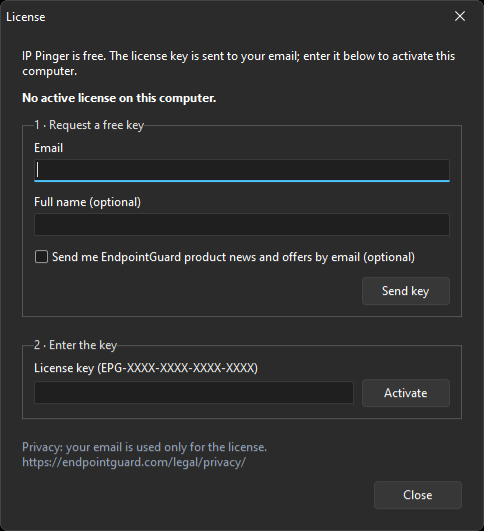
Open Account › License.
- Under "1 · Request a free key", type your email address. The name is optional. There is a separate checkbox for product news; the key arrives whether you tick it or not.
- Click "Send key". The key reaches your inbox within a few minutes. If you cannot find it, look in the spam folder.
If you ask again with the same email address, no new key is created; the same key is sent again.
Activation
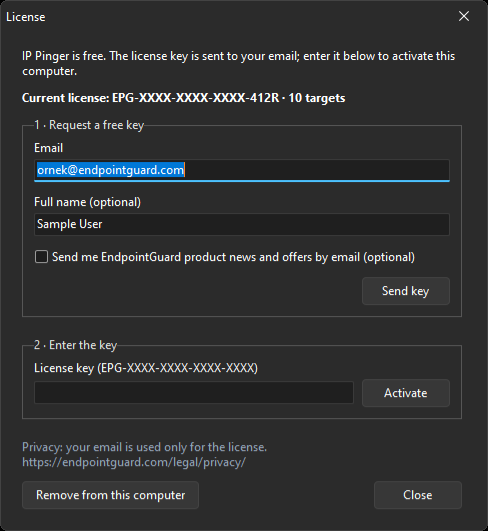
Paste the key from the email (it looks like EPG-XXXX-XXXX-XXXX-XXXX) under "2 · Enter the key" and click "Activate". A "Current license" line appears with the masked key and the target limit. The free license monitors up to 10 targets.
The key is tied to the computer. To move it, first click "Remove from this computer" on the old one, then enter the same key on the new one. If the key is already active on as many computers as it allows, you will see "This key is active on the maximum number of computers".
14 days without internet
On first activation the server signs the license and the program stores it. On each start the program checks that signature locally instead of asking the server. Once every 24 hours it renews the license in the background. If there is no internet, the renewal waits and the program keeps working.
If the license cannot be renewed for 14 days, the status bar shows "License could not be verified for more than 14 days" and monitoring stops. When the internet comes back the license renews by itself.
If the computer clock moves backwards (a wrongly set BIOS clock, for example), the program stops trusting the stored license and verifies it with the server again. You may see a clock warning in the status bar while this happens.
3. Adding targets
New target
Use Targets › Add target, the Add button on the toolbar, or the Ins key.
- Name: what the list shows. Up to 120 characters.
- IP address or name: an IPv4 address (
192.168.1.1), an IPv6 address, or a name. A name can be a short computer name (ACCOUNTING-PC), a fully qualified name (server.company.local) or an internet address (dns.google). - Group: optional. Targets with the same group name are listed together.
- Ping interval: 1 to 3600 seconds. The target is probed once per interval.
- Monitoring on: when unticked, the target stays in the list but is not probed.
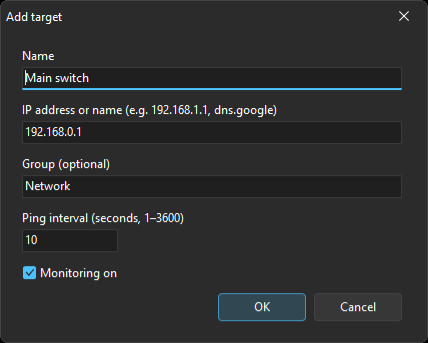
Pick the interval by how much the target matters. Checking a server or your internet uplink every 5–10 seconds makes sense; a printer every 60 seconds is plenty. Pinging many targets every second creates traffic without adding much to the history, which is stored as per-minute summaries anyway.
Each request waits up to 2 seconds for a reply. With an interval shorter than 2 seconds the wait is shortened to fit (half a second at least).
Thresholds
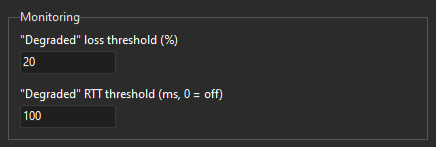
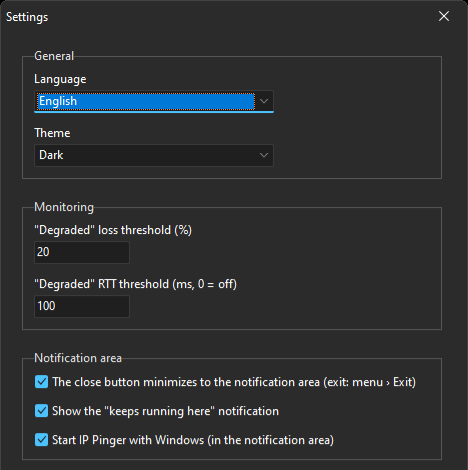
Settings › Monitoring decides when a target counts as "Degraded". The thresholds apply to all targets.
- "Degraded" loss threshold (%): 20 by default. If the loss in a minute reaches this rate, the target turns "Degraded".
- "Degraded" RTT threshold (ms): 0 by default, which means off. Set it to 150, say, and a target turns "Degraded" when its average response time goes above 150 ms.
Target limit
The free license monitors 10 targets. In cloud mode the limit comes from your plan (section 8). Adding a target beyond the limit shows a warning. If the limit drops later (when you unlink from the cloud, for instance), the extra targets stay in the list but are not probed; the first enabled targets in list order are monitored.
Editing, deleting, pausing
Double-click a row or press F2 to edit it. Del deletes the selected targets, together with their local history.
To stop watching one target for a while without deleting it, use right-click › Pause target (section 7). Targets › Pause monitoring stops everything.
4. The list and statuses
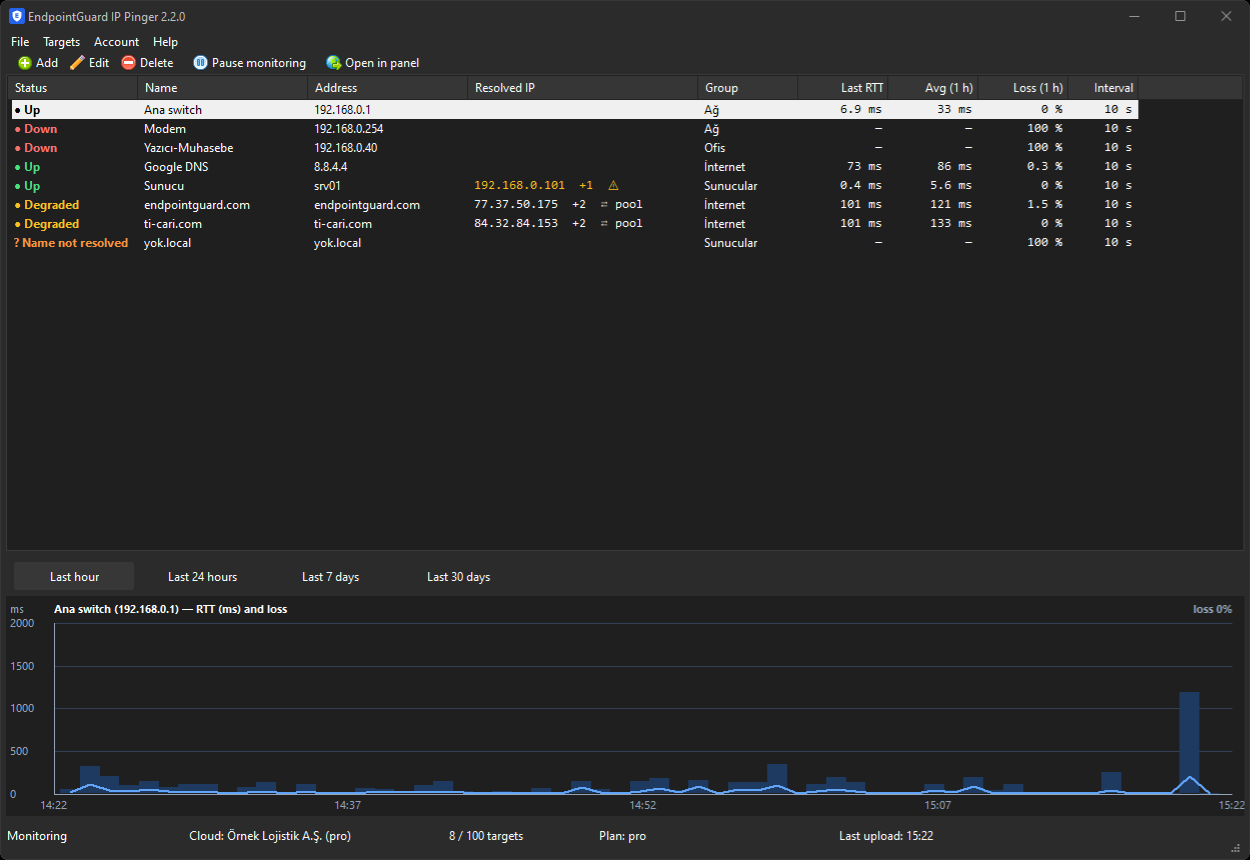
Statuses
| Status | Meaning |
|---|---|
| Up | The target replies; loss and response time are below the thresholds. |
| Degraded | Replies arrive, but loss or average response time is above a threshold. The panel calls this "partial loss". |
| Down | The target does not reply. For a named target, every known address was tried and none replied. |
| Name not resolved | There is no DNS answer for the name and no usable IP address. Shown in orange with a ? symbol. |
| Waiting | No result yet, or the program is waiting for an internet connection. |
| Paused | The target was paused from the right-click menu. Shown in grey with a ‖ symbol. |
"Down" and "Name not resolved" are different problems. In the first, the address is known but the device does not answer: it may be off, unplugged, or a firewall may block ping. In the second, the program could not find out the device's address, and the cause is most likely DNS (section 10).
Columns
- Status, Name, Address: the live status and the values you entered.
- Resolved IP: for named targets, the address being pinged right now. Empty if you entered an IP address.
- Group.
- Last RTT: the response time of the last reply, in milliseconds. 0 or 1 ms is normal for devices on the same local network.
- Avg (1 h), Loss (1 h): average response time and loss over the last hour.
- Interval: the ping interval.
The Resolved IP column can carry three extra marks:
- +N: the name has N more addresses. The detail line above the chart lists them.
- ⇄ pool: the name belongs to a DNS pool (CDN, load balancing) that keeps returning different addresses. See section 6.
- Yellow ⚠: in cloud mode, the address being pinged differs from the one the EndpointGuard agent reports for that device (section 8).

Column widths and window size
The columns fit the window. Status, Last RTT, Avg, Loss and Interval keep a fixed width; Name, Address, Resolved IP and Group share the space that is left. The layout is recalculated as you resize the window, and no horizontal scroll bar appears.
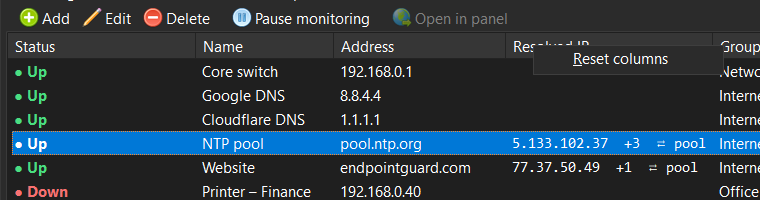
If you drag a column divider in the header to make a column wider, that column keeps its width and it is saved; the others still follow the window. To go back to the automatic layout, right-click any column header and choose Reset columns.
On first start the window takes 70% of the screen's work area and opens in the middle (at least 960×640, at most 1280×800). After that, the size and position you last closed it with are used. If the saved position is on a screen that is no longer connected, it is ignored and the window opens in the middle again.
Status bar
The bottom of the window has five panes: monitoring status, connection, number of targets and the limit, license or plan, and the time of the last upload to the cloud. When you use right-click › Ping now, the result shows in the last pane for a few seconds.

5. Charts
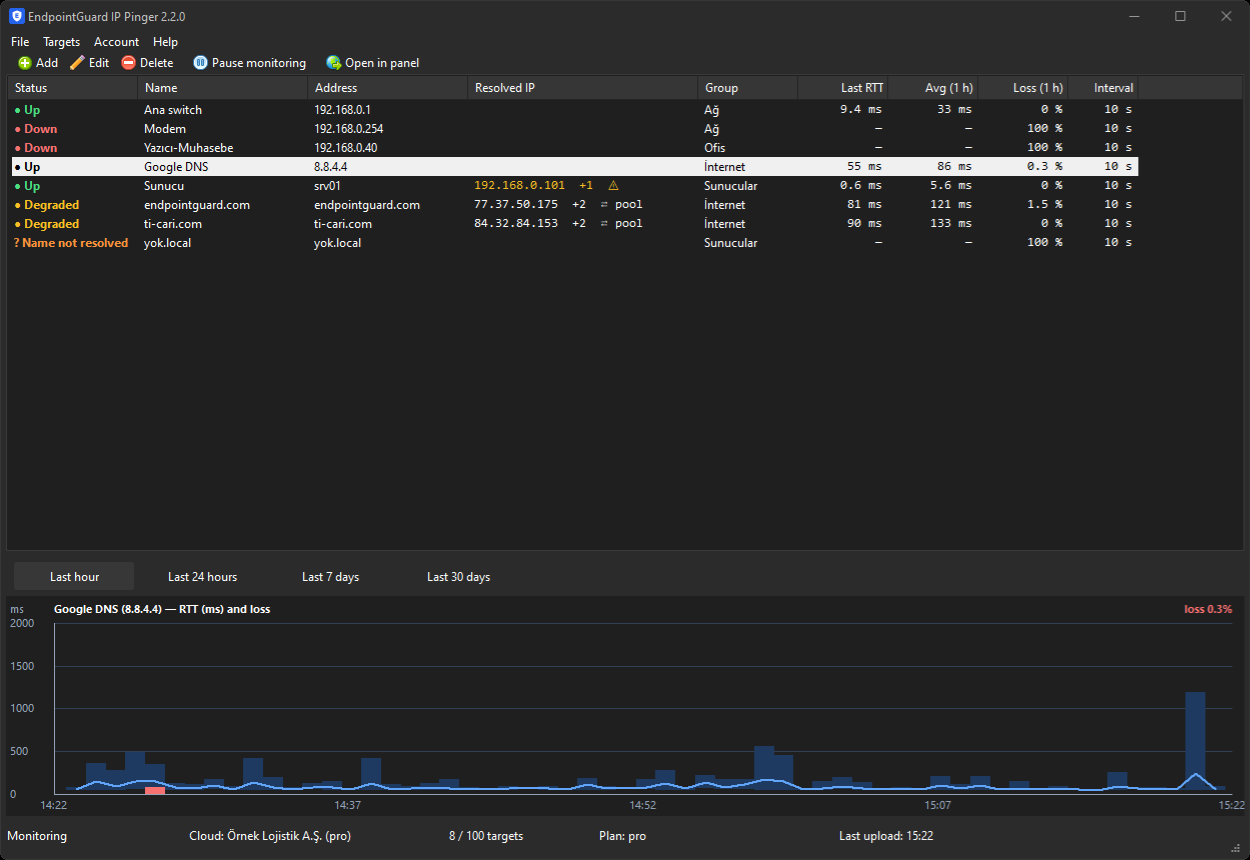
Select a target in the list and its chart appears below. Above the chart is a detail line: the address being pinged, the other addresses, why this address was chosen, and the last IP change.
Reading the chart
- Dark line: average response time for each minute (ms).
- Light band around the line: the shortest and longest reply in that minute. A wide band means the response time jumps around; the connection may be unsteady even when the average looks low.
- Bars at the bottom: packet loss. The lowest quarter of the chart is reserved for loss; a bar that reaches the top of that strip means every packet was lost in that minute.
- Reddish background: minutes in which the target did not reply at all.
- Gaps in the line: no data for those minutes. The program was closed, monitoring was paused, or the computer was asleep.
On the right of the title is the total loss for the selected range, in red when it is above zero. Time labels use your computer's local time.
The chart is drawn from per-minute summaries. A new target's chart appears once its first minute is complete; until then it says "No data in this range yet".
Ranges
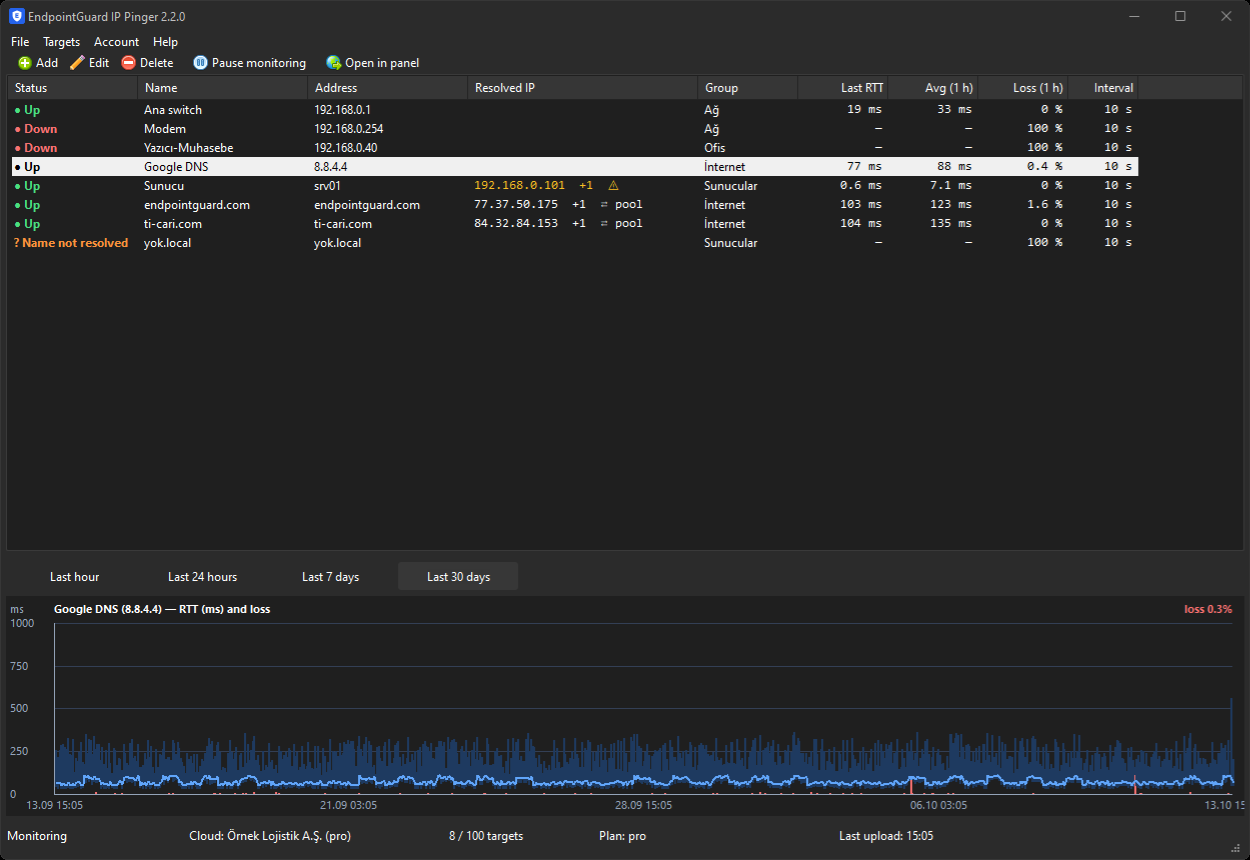
"Last hour" and "Last 24 hours" are always available. The computer keeps per-minute summaries for the last 7 days.
The "7 days" and "30 days" buttons are locked in the free edition and labelled "· Pro". Clicking them opens the pricing page; the chart does not change. In cloud mode, if your plan is Pro or Business, they unlock ("Last 7 days", "Last 30 days"). The data for these two ranges comes from the cloud as hourly summaries, and "Loading from the cloud…" shows while it loads. For a target you have just added to the cloud you may first see "No cloud history in this range yet".
The panel offers ranges from 1 hour to 90 days for the same target.
6. Names and DNS
When a target is a name, IP Pinger looks up its addresses itself and decides which one to ping. For targets entered as an IP address no DNS query is made at all.
Names with several addresses
When a computer has both a wired and a wireless connection, or a server has more than one address, DNS returns them all. IP Pinger chooses like this:
- If the name has IPv4 addresses, it looks only at those; otherwise at the IPv6 ones.
- It drops link-local (
169.254.x.x,fe80::) and loopback (127.x.x.x,::1) addresses. - It sorts the rest: addresses on the same subnet as the computer running IP Pinger first, then other private network addresses, then public (internet) addresses.
- If more than one candidate is left, it sends 3 pings to each. Among those that reply it takes the best class in that order, and the shortest response time when there is a tie.
The chosen address appears in the Resolved IP column, the others as "+N". The detail line shows the full list and the reason, for example "only address", "same subnet, lowest RTT" or "private network, lowest RTT".

The choice is sticky
The name is resolved again every 5 minutes and whenever a ping fails. That does not mean the choice changes each time. As long as the chosen address keeps replying, it stays, even if DNS returns other addresses this time. This keeps the program from flipping between two equivalent addresses over small differences in response time.
The choice changes when:
- The chosen address does not reply for 3 rounds in a row. The other candidates are tried first and the program switches to one that replies. If none does, the name is resolved again. If that does not help either, the status becomes "Down".
- The chosen address is missing from the DNS answer in two resolutions in a row. This is usually a real change: the device got a new address from DHCP, or the DNS record or the hosts file was edited. The program moves to the new address even if the old one still replies.
- In cloud mode, the EndpointGuard agent reports a new address for that device (section 8).
IP changed event
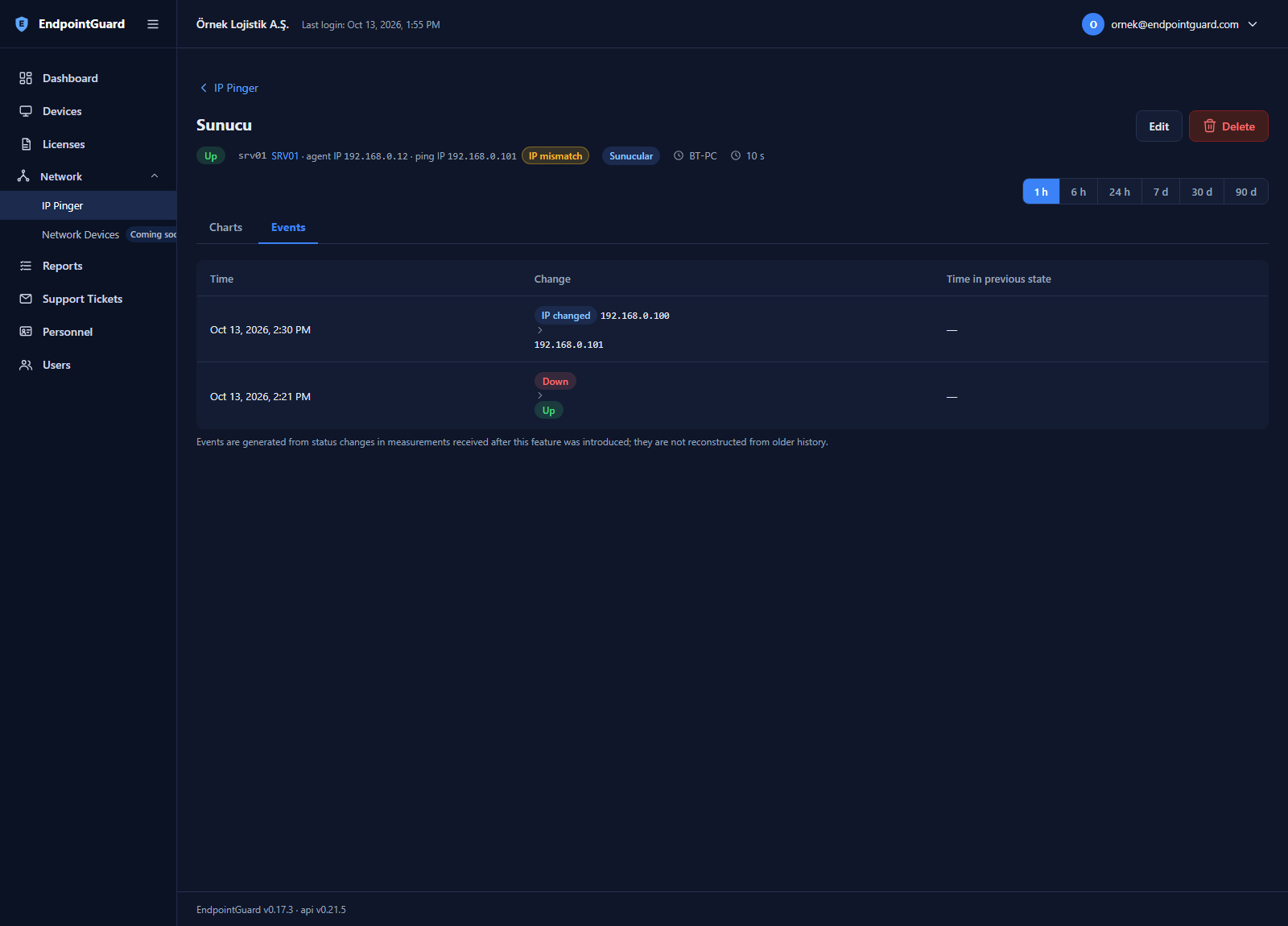
When the address being pinged changes, the program records an event with the old address, the new address and the time. It shows in the detail line as the last IP change. In cloud mode it also appears on the target's Events tab in the panel and in the "IP changes" column of the Pinger SLA report.
An IP change is not downtime and does not affect availability. Resolving a target for the first time is not an event either.
DNS pools
Some names, mostly websites behind a CDN or a load balancer, return different addresses on every query. Recording each of those as an event would be noise. If a name returns at least 4 different addresses within 60 minutes, IP Pinger marks it as a "dynamic DNS pool". The list shows a ⇄ pool badge, and IP changes on that target are not recorded as events.
The detail line shows how many addresses the pool has returned and up to 5 of the most recent ones. Hover over the line and the tooltip lists up to 20 addresses, five per line; the rest are summed up as "… and N more addresses". If DNS keeps giving the same answer for 24 hours, the pool mark goes away by itself.

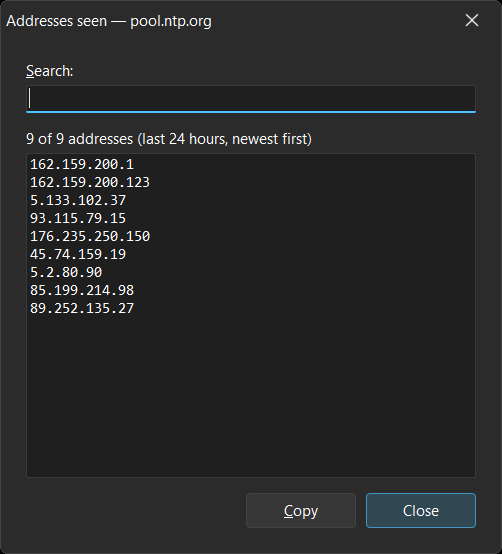
The "Show all N addresses…" link under the detail line opens a window that lists the addresses seen in the last 24 hours, newest first. Type part of an address in the search box to narrow the list. Copy puts the addresses you selected on the clipboard, or every address currently shown if nothing is selected. This is handy when you write a firewall rule or send a list of addresses to a provider.
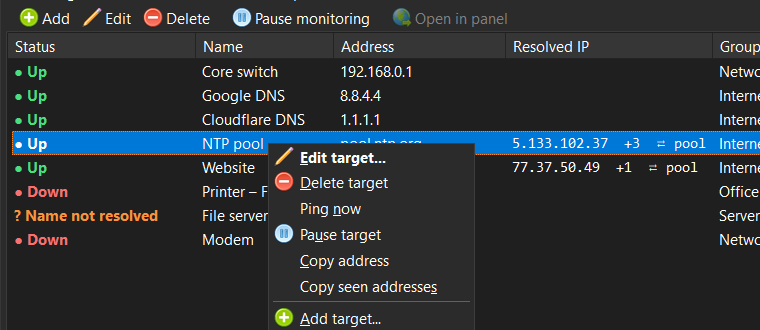
You can also copy without opening the window: right-click the pool target and choose Copy seen addresses. The addresses are copied one per line, newest first. The option only appears when a single pool target is selected.
7. Menus, tray and settings
Right-click menu and shortcuts
Right-click a row in the list for:
- Edit (F2 or double-click)
- Delete (Del)
- Ping now (F5): sends a single ping and shows the result in the status bar. This ping is not counted in the statistics.
- Pause target / Resume target: stops only this target. A paused target is not pinged, produces no minute summaries and is left out of availability.
- Copy address: for a named target it copies
name (IP). - Copy seen addresses: only on a DNS pool target (section 6).
- Open in panel: cloud mode only.
- New target (Ins)
With several rows selected, only Delete and Pause/Resume work. If any selected target is being monitored, all of them are paused; otherwise all are resumed. F1 opens this guide.
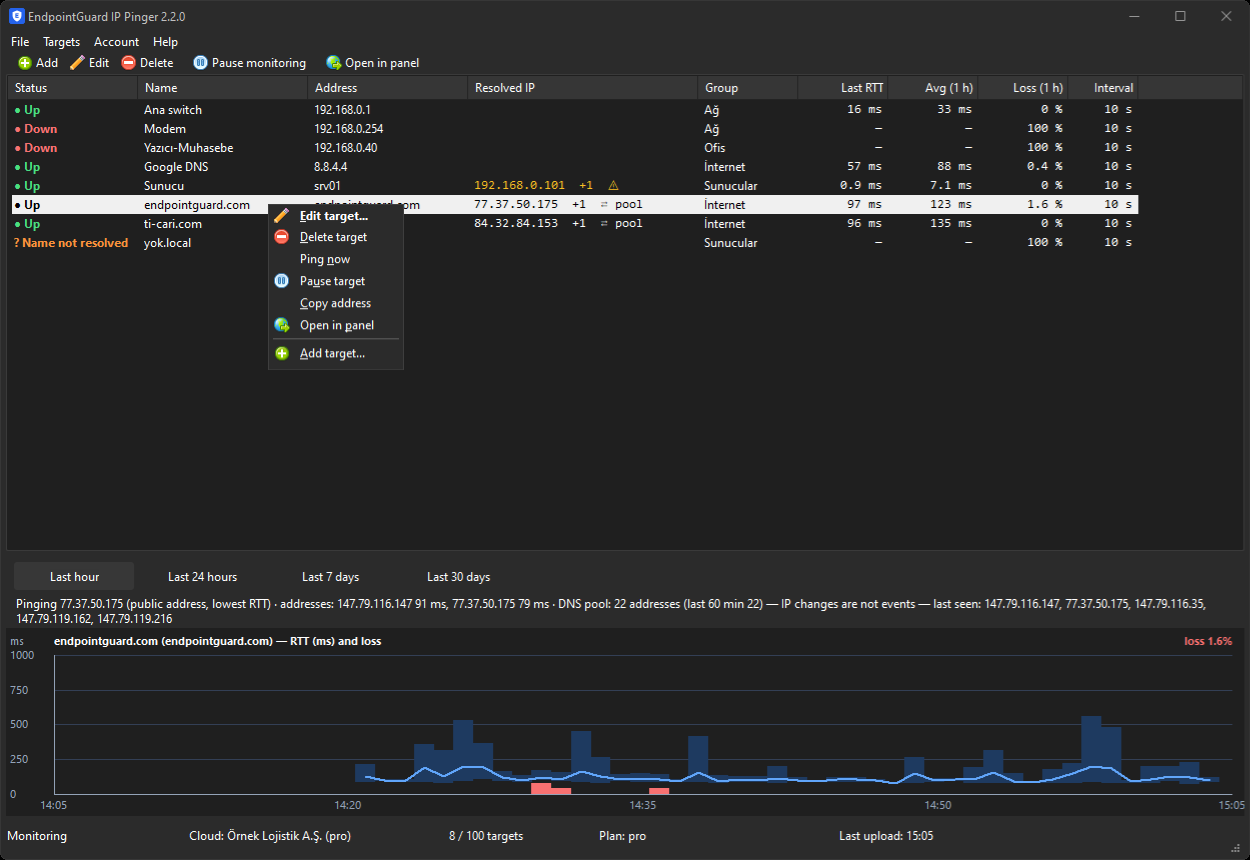
Toolbar and menus
The toolbar has Add, Edit, Delete, Pause and Open in panel. In cloud mode, Open in panel opens the selected target's page in the panel, or the panel's IP Pinger list when nothing is selected. In the free edition the button is disabled.
The Account menu holds the license, linking to an account and unlinking. In the free edition it also shows a "Pro features" submenu. The Help menu has this guide, the release notes, the update check and the About window.
Notification area (tray)
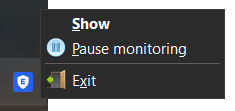
When you minimise the window, IP Pinger leaves the taskbar and moves to the notification area next to the clock; monitoring goes on. By default the window's close (X) button does the same. To really quit, use File › Exit or Exit in the tray icon's menu.
Right-click the tray icon for Show, Pause/Resume monitoring and Exit. Double-click it to bring the window back.
Each time you minimise, a "EndpointGuard Pinger keeps running here." balloon appears. You can turn it off, and change what the X button does, in Settings › Notification area.
The program does not open twice under the same user account. If you try, you get "EndpointGuard Pinger is already running." and the running window comes to the front.
Start with Windows
Tick Settings › Notification area › "Start IP Pinger with Windows (in the notification area)" and the program starts in the tray, without a window, when you sign in, and begins monitoring right away. The setting is per user and does not affect other users of the same computer.
Language and theme
In Settings › General:
- Language: Same as Windows, Türkçe or English. The new language applies immediately.
- Theme: Same as Windows, Light or Dark. By default it follows Windows' app theme setting.
You do not need to change "Server address" in Settings › Advanced; it is there for when support asks you to.
8. Linking to the cloud
When you link IP Pinger to your EndpointGuard account, targets and per-minute summaries also go to the panel. You can watch IP Pinger on several computers from one place and manage targets from the panel. Cloud mode needs no separate license key; your plan sets the limits.
Link code
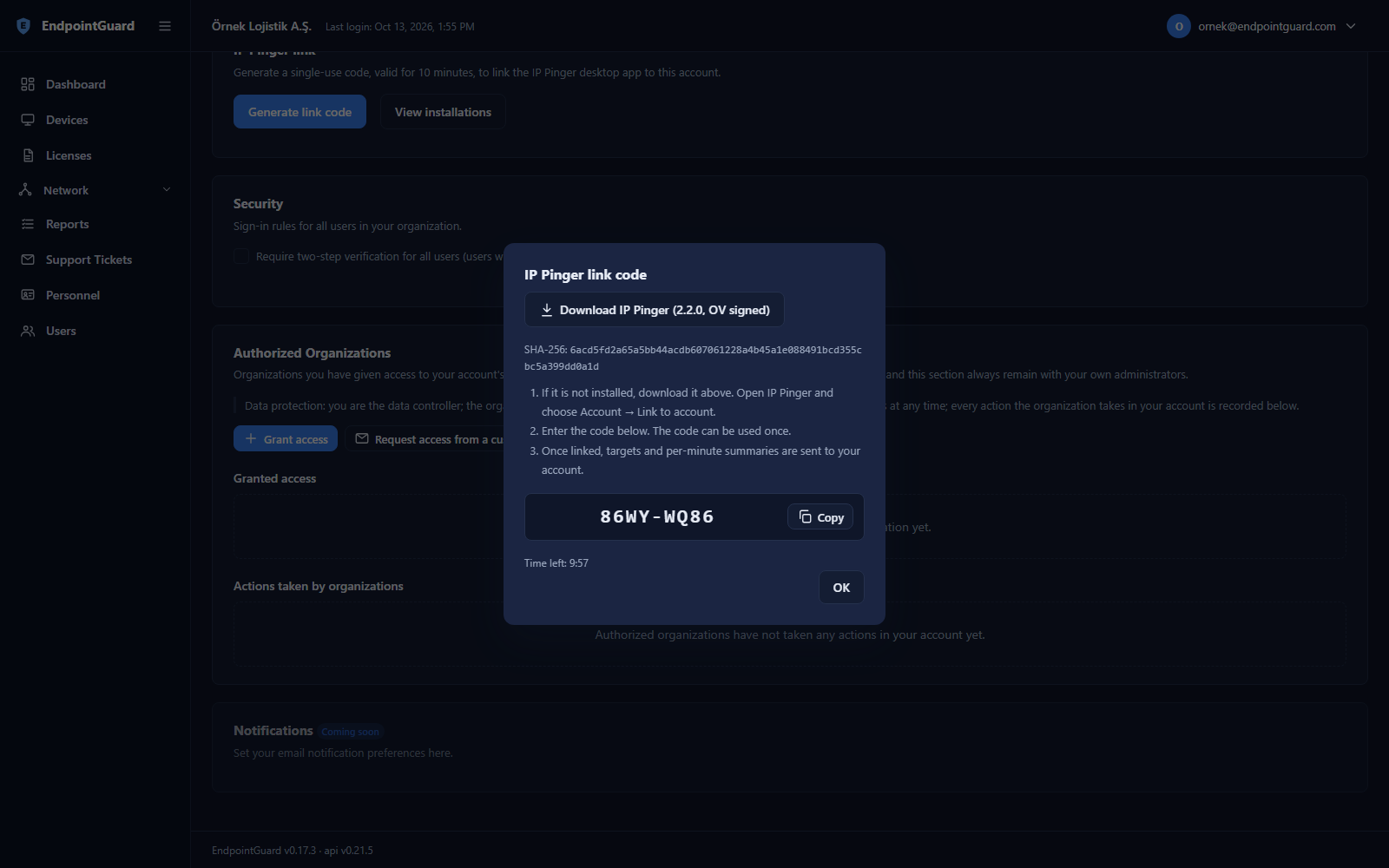
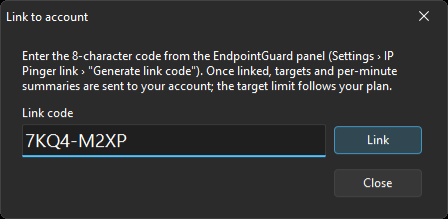
- In the panel, go to Settings › IP Pinger link and click "Generate link code". The same button is on the Network › IP Pinger › Installations tab. Only an account admin can generate a code.
- An 8-character code appears. It is valid for 10 minutes and can be used once.
- In IP Pinger, open Account › Link to account, type the code and click "Link".
Once linked, the status bar shows your account name and plan. All targets on the computer are sent to the panel in the first sync.
Sync
Sync works both ways. A target you add, change or delete on the desktop goes to the panel; a change made in the panel comes down to the desktop. The program syncs once a minute, sooner when you change a target. If the same target is changed on both sides at the same time, the panel's change wins.
Per-minute summaries also go up once a minute. If the internet drops, they wait on the computer and are sent when the connection returns. They can wait for up to 24 hours; older summaries are not sent to the cloud but stay in the local history. Raw ping results never go to the cloud.
Plan limits
| Free | Pro | Business | |
|---|---|---|---|
| Targets | 10 | 100 | unlimited |
| Per-minute history in the cloud | 7 days | 90 days | 365 days |
| 7 / 30-day charts on the desktop | locked | available | available |
Hourly and daily summaries are kept in the cloud for 2 years. If you have more targets than your plan allows, the extra ones are not sent to the cloud and the status bar says how many were left out.
What the panel shows
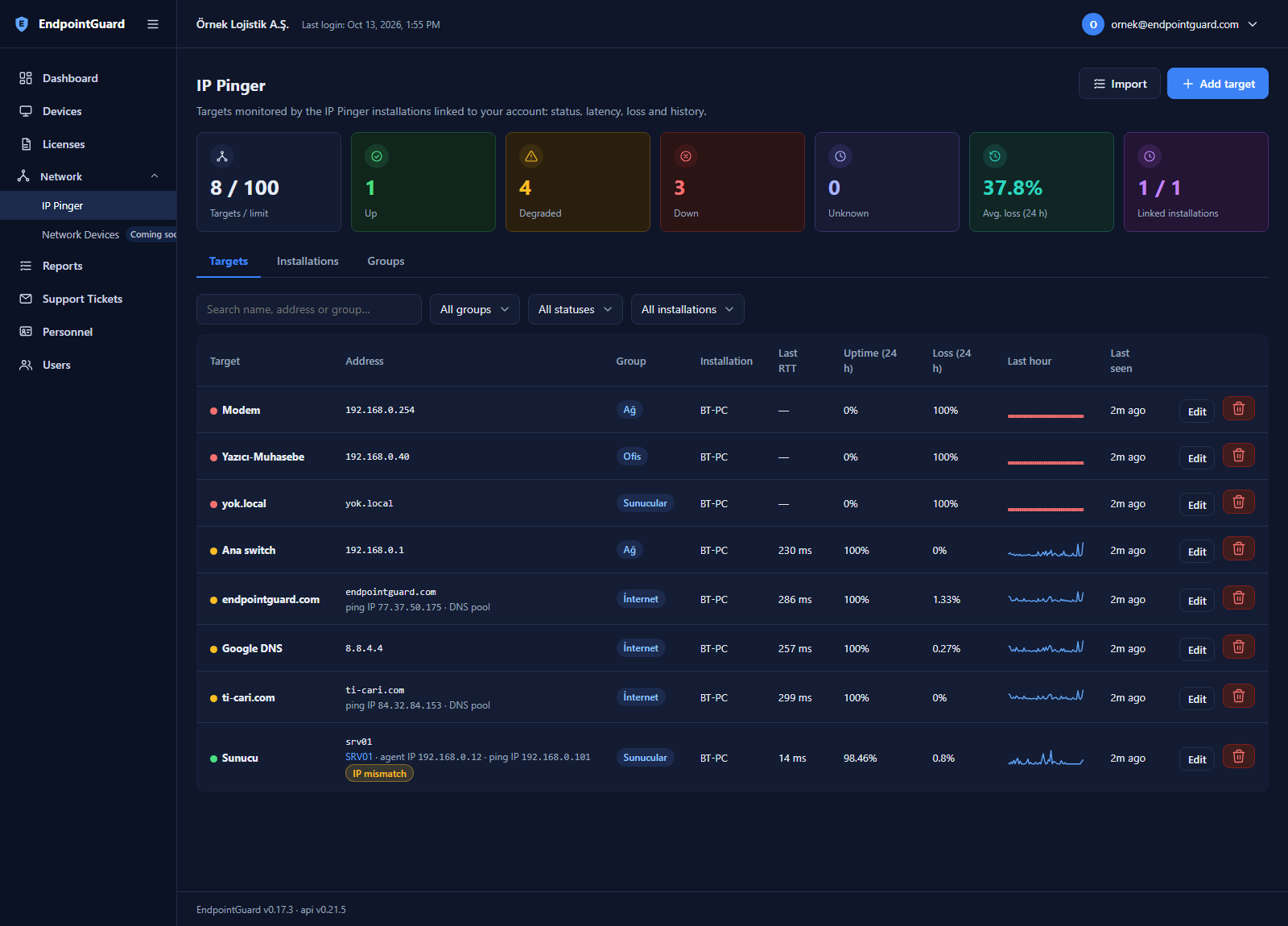
On the Network › IP Pinger page of the panel:
- Targets: targets from all installations, with status, last response time, 24-hour availability and loss, and a small chart of the last hour. You can filter by group, status or installation.
- Target details: charts for 1 hour, 6 hours, 24 hours, 7 days, 30 days and 90 days; availability, average response time and total downtime; and an Events tab with status changes and IP changes.
- Installations: linked computers with their version and when they were last seen. You can remove an installation's link here.
- Groups: group names and colours.
You can also add targets in the panel, one by one or as a bulk import; a target you add goes to the installation you choose. The "IP Pinger" strip on the Dashboard shows targets that are down. Reports › Pinger SLA gives availability per period.
Agent match
If the EndpointGuard agent runs on computers in your account, IP Pinger makes use of it. When a target's name matches the name of exactly one computer with the agent (target ACCOUNTING-PC, device ACCOUNTING-PC), the primary IP address reported by the agent goes to the top of the candidate list and is pinged if it replies. A stale DNS record does not matter then.
If the address being pinged differs from the one the agent reports, the Resolved IP cell gets a yellow ⚠. Usually either the agent's address does not answer ping or DNS points to another device. In the panel the same row links to the device and shows an "IP mismatch" badge.
Matching only works for targets entered by name. If more than one device has the same name, no match is made.
Unlinking
Account › Unlink removes the link from the computer; you can also remove it in the panel on the Installations tab. Either way, local targets and history stay on the computer and the program returns to the free edition, where it needs a license key to keep working (section 2). Targets and history in the panel are not deleted, and if the same computer links again it gets its old installation record back.
9. Updates
Automatic check
IP Pinger checks for a new version once a day. The first check runs a minute after monitoring starts. If there is no internet, the check quietly waits until the next hour.
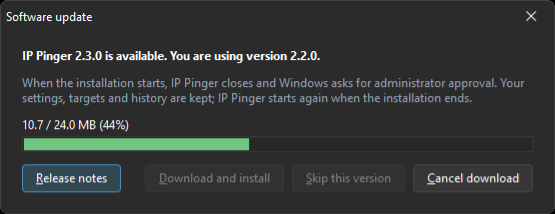
When a new version is out, the "Software update" window opens. If the program is in the tray, a balloon appears first; the update window comes up when you click the balloon or open the main window.
Beta versions
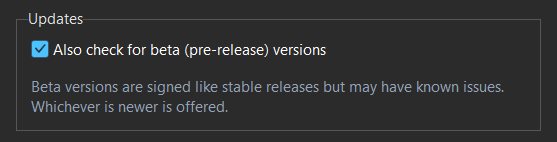
The Settings › Updates › "Also check for beta (pre-release) versions" check box is off by default. Tick it and the check looks at the pre-release channel as well as the stable one and offers whichever is newer; the update window shows "(beta)" next to the version number. Beta versions are signed too and go through the same verification described below, but they may have known issues. If no pre-release is out at the time, the stable version is offered.
When you change the check box, the next check runs within the hour instead of waiting 24 hours. Turning it off does not roll back a beta you already installed; you move to the next stable version when it comes out.
Manual check
Help › Check for updates. You always get an answer: either "IP Pinger 2.2.2 is up to date" or the update window. A version you skipped earlier is offered again here.
The update window
It shows the new version, the one you are using and the download size.
- Release notes: opens the list of changes in your browser.
- Download and install: downloads, verifies and installs the file. Progress shows while it downloads; "Cancel download" stops it.
- Later: closes the window; you will be asked again the next day.
- Skip this version: the automatic check will not ask about this version again. It will ask when a newer one comes out.
Verification
Before anything is installed, the downloaded file goes through three checks:
- Its SHA-256 value matches the one the server announced.
- Its digital signature is valid.
- The signature belongs to NS Yazılım ve Danışmanlık A.Ş.
If any check fails, the file is deleted, the window says why, and nothing is installed.
Installation
After verification IP Pinger closes and starts the installer. Windows asks for administrator approval. When the installer finishes, IP Pinger opens again with your settings, targets and history in place. If you decline the approval or the installation stops halfway, the old version opens.
10. Troubleshooting
A device does not answer ping
First see whether the device answers ping outside IP Pinger. Open a command prompt and type:
ping 192.168.1.50If you get "Request timed out" here too, the problem is not in IP Pinger. Common causes:
- Windows Firewall: Windows computers do not answer ping in their default setup, especially on the "Public" network profile. On the target computer, go to Windows Defender Firewall › Advanced settings › Inbound Rules and enable "File and Printer Sharing (Echo Request - ICMPv4-In)" for your network profile. Or, in an administrator command prompt:
netsh advfirewall firewall add rule name="ICMPv4 Echo" protocol=icmpv4:8,any dir=in action=allow- Other security software: third-party firewalls can block incoming ping on the target and outgoing ping on the computer running IP Pinger. If ping works from the command prompt but IP Pinger shows "Down", allow
EPG_Pinger.exein your security software. - Devices that ignore ping: some routers, printers, cameras and cloud servers turn ICMP off entirely. IP Pinger shows them as "Down" even while they work.
- Sleep and power saving: sleeping laptops and some network cards do not answer ping.
A name does not resolve
If the status is "Name not resolved", look the name up in a command prompt:
nslookup ACCOUNTING-PC- No answer means your DNS server does not know the name. Try the full name (
accounting-pc.company.local) instead of the short one (ACCOUNTING-PC), or enter the target by IP address. - On the same local network, short names can also resolve through NetBIOS or mDNS. A short name of a computer on another subnet or behind a VPN may not.
- If
nslookupreturns the right address but IP Pinger pings a different one, look at the detail line: the reason for the choice and the other candidates are there. If the name recently moved to a new address, IP Pinger follows within two resolutions (about 10 minutes).
"Waiting for connection"
When the status bar says "Waiting for connection", the program has decided it cannot reach the internet and has stopped monitoring. It tries again every 30 seconds and carries on when the connection returns.
It reaches that decision in two cases: it cannot reach the EndpointGuard server three times in a row, or every monitored target stops replying at once and the computer's default gateway is gone. Apart from the cable and Wi-Fi, check that your company firewall or proxy lets traffic out to api.endpointguard.com on port 443. While the server is unreachable, local targets are not probed either, so you will see a gap in the history.
License and link errors
- "The link code is invalid, expired or already used": generate a new code in the panel. A code is valid for 10 minutes and works once.
- "This key is active on the maximum number of computers": remove the key from a computer you no longer use with "Remove from this computer".
- "Activation not found; enter the key again": enter the key again in Account › License.
Log file
IP Pinger writes what it does and the errors it hits to a log file. To open its folder, press Win+R and type:
%LOCALAPPDATA%\EndpointGuard\PingerThe file is pinger.log.
Support
If you cannot solve the problem, write to info@endpointguard.com. Include the IP Pinger version (Help › About), your Windows version, when the problem started, and the pinger.log file. The log contains your target names and addresses; feel free to remove lines you would rather not share.
11. Data and privacy
What stays on the computer
IP Pinger keeps all its data in your user folder:
%LOCALAPPDATA%\EndpointGuard\Pinger\pinger.json: settings. The license key and the cloud link key are encrypted in this file with the Windows data protection API (DPAPI); only your Windows account can decrypt them.pinger.db: targets, per-minute summaries, chosen IPs, IP change events and DNS pool information.pinger.log: the log file.
Raw ping results are not written to disk; only the summary of each minute is kept (packets sent and received, shortest, average and longest response time, loss, status). Per-minute summaries are kept for 7 days, IP change events for 90 days.
Uninstalling the program does not delete this folder; if you reinstall, everything is still there. To remove the data completely, close the program and delete the folder by hand.
What goes to the server in the free edition
- License: the email address you enter when requesting a key, the optional name and the news consent. On activation the program sends a computer identifier. It is a one-way hash (SHA-256) of the motherboard ID and the Windows installation ID; those values cannot be recovered from it.
- License check: once a day, the key and the same hash.
- Announcement strip: on start the program asks for EndpointGuard product messages, sending the interface language and the license type (free or cloud). The request carries no identity or device information; views and clicks are kept only as totals. There are no third-party ads.
- Update check: the program asks for the latest version. When an update is downloaded, the download is logged with a shortened IP address only.
In the free edition your targets, their addresses and ping results never leave the computer.
What also goes in cloud mode
- The computer name and the IP Pinger version (shown on the Installations tab in the panel).
- Targets: name, address, group, interval, monitoring on or off.
- Per-minute summaries from the last 24 hours.
- For named targets: the chosen IP, IP change events and whether the target is a DNS pool.
This data belongs to your account and shows only in your account's panel. For details, see the Privacy Policy.