Free network monitoring for small offices with IP Pinger
When someone says "the internet is slow", the first answer is usually a guess. Is it the switch, the modem, the line, or just that person's cable? To know, you have to look at the exact moment it happens, and by the time you get there it has usually passed.
IP Pinger exists to close that gap. It checks the addresses you give it at the interval you choose, shows the result live, and keeps the history, so you can open it the next morning and ask what happened yesterday afternoon. The free version watches up to ten addresses. This is how you get from installation to your first graph.
What it does and does not do
IP Pinger is a Windows desktop application. It sends ICMP echo requests (pings) to a target, measures how long the reply takes, and counts the ones that never come back. A target can be an IPv4 address, an IPv6 address or a DNS name.
It does not need administrator rights. Windows itself sends the ping on the application's behalf, so a normal user account is enough.
It only pings. It cannot tell you whether a website loads or whether a port is listening. A device configured not to answer pings will show "no response" even when it is perfectly healthy, so check that before you add a firewall appliance to the list.
Setting it up
- Download IP Pinger from the Downloads page. The installer carries our organisation's code-signing certificate.
- Open the application. For free use, ask for a license key from the Account menu: you type your email address and the key is sent there. You activate it from the same menu.
- Add your targets.
The license is stored on your machine as a signed document. Once it has been verified, it keeps working for 14 days without internet access, so a connection problem does not stop your monitoring.
On startup the application checks for a newer version and asks before doing anything; download and install happen inside the app, and your settings and history are kept.
What to monitor
You have ten slots. This is the order we would fill them in:
- The gateway, usually the modem or main router. If it does not answer, everything looks dead and the trouble is inside your own network.
- A fixed address on the internet. A well-known public DNS server will do. If the gateway answers and this does not, the problem is the line or the provider.
- The main switch. If you have several layers, the topmost and most critical one.
- A server or NAS, whatever people connect to and call you about first when it drops.
- Printers. The devices people complain about most, and among the easiest to ping.
Watching the gateway and an internet address side by side helps. When they start behaving differently, you can usually tell which side the fault is on.
Interval and thresholds
For each target you pick a polling interval between 1 and 3600 seconds. A rough rule: 5 to 10 seconds for critical devices, 60 seconds for the rest. Checking more often gives you more data, but not necessarily more information.
A target is in one of three states. If nothing comes back, it is "no response". If the loss rate crosses a threshold (20 percent by default, adjustable in Settings), it is "partial loss". Anything else is "up".
The screenshot below shows it. One row is red with 100 percent loss; the others are green. The graph underneath shows the latency and loss of the selected target over the last hour or the last day.
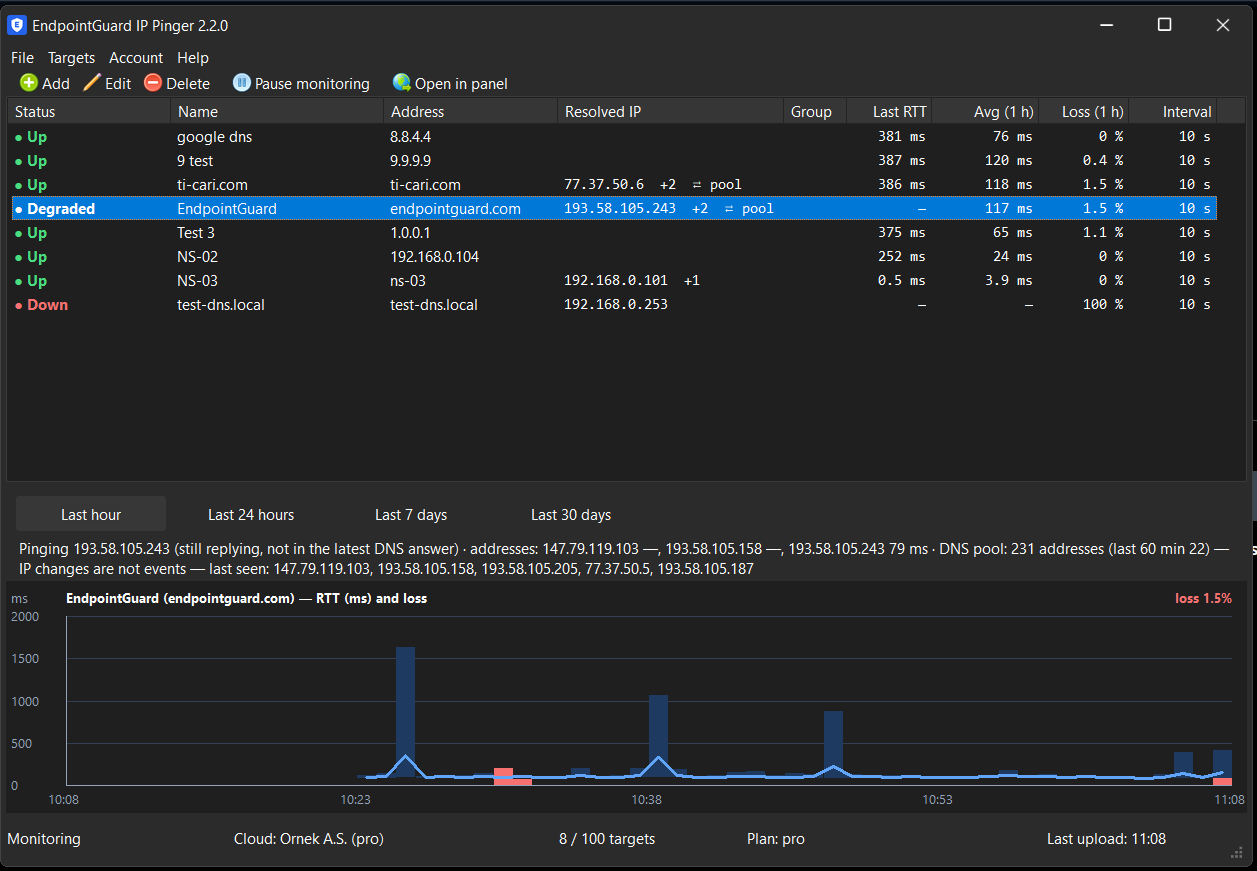
The blue line is latency in milliseconds and the red line is packet loss. A flat, low line is healthy. Spikes are single slow replies, and red vertical lines are lost packets. If you see a spike repeating at the same time every day, something on the network runs on a schedule: a backup, an update, or someone downloading a large file.
In the free version, the local history is kept for 7 days. The 1-hour and 24-hour graphs are open; longer ranges need a Pro account.
Monitoring DNS names
If you give a target by name rather than by address, Pinger resolves it and shows the address it is actually pinging in the "Resolved IP" column. When a name resolves to several addresses it prefers one on your own subnet, otherwise the fastest to answer, and sticks with it as long as it keeps replying. It does not hop targets just because DNS returned a different answer this time.
Two situations are kept apart. If the name cannot be resolved at all, that is not "no response"; it is its own state. The device may be fine and the fault is in DNS. If the chosen address stops answering for three rounds, or disappears from two consecutive DNS answers, Pinger moves to the new address and records an "IP changed" event. A hosts file edit, a DHCP lease handing out a new address, someone moving a server: all of them show up as that event.
Then there are rotating pools. Large sites and anything behind a CDN return a different address on every query. When Pinger sees four or more addresses within an hour it marks the target as a pool and stops treating address changes there as events; otherwise the list would fill with noise.
Connecting to the cloud
An application on one computer stops watching when that computer is switched off. If you want monitoring to run on a server or an always-on PC and be visible from anywhere, you can link Pinger to your EndpointGuard account.
In the panel, generate a link code under Settings. It is valid for 10 minutes and works once. In Pinger you choose "Connect to account" and enter the code. From then on targets sync both ways: a target added in the panel appears on the desktop, and one added on the desktop appears in the panel. After linking, the target limit comes from your account's plan rather than from the free application.
The panel shows a small last-hour graph for each target, a status summary, the loss rate, and a list of events. When a target goes down or comes back, that is recorded as an event, and so is an address change on a name-based target. That way "when did it start?" has an answer.

On the detail page you choose a range from one hour up to ninety days and see three graphs on a shared time axis:

Raw ping results never leave the machine. The application builds one summary per minute (sent, received, lowest, average and highest latency, loss) and uploads only that. If the internet drops, the summaries pile up locally and are sent once the connection returns.
Getting started
Install the free application on one computer, add the gateway and one internet address, and leave it running for a day. The next morning the graph shows what your network normally does. You can only spot what has drifted when you know what normal looks like.
Read this post in Turkish: IP Pinger ile ağ cihazı izlemeye ücretsiz başlangıç